How to Connect Printify to Etsy (And What to Do After)

How to Connect Printify to Etsy (And What to Do After)

Setting up the Printify–Etsy integration is one of the first things every print-on-demand seller does. It takes about 5 minutes. But what happens after the connection is where most sellers either set themselves up for success or quietly hold themselves back for months.

This guide covers both: the connection itself and the often-overlooked setup that separates thriving shops from struggling ones.


Step 1: Create Your Accounts

You need two accounts before you start:

Printify accountprintify.com. The free plan is enough to get started. You pay for production and shipping per order, not a flat monthly fee.

Etsy seller accountetsy.com/sell. You need to register as a seller and complete shop setup (name, payment method, policies) before you can connect to Printify.


Step 2: Connect Printify to Etsy

  1. Log in to Printify and go to My Stores (top left menu).
  2. Click Add a new store.
  3. Select Etsy from the list of sales channels.
  4. Click Connect — this opens an Etsy OAuth window.
  5. Log in to Etsy and click Allow Access.
  6. You are redirected back to Printify with the connection confirmed.

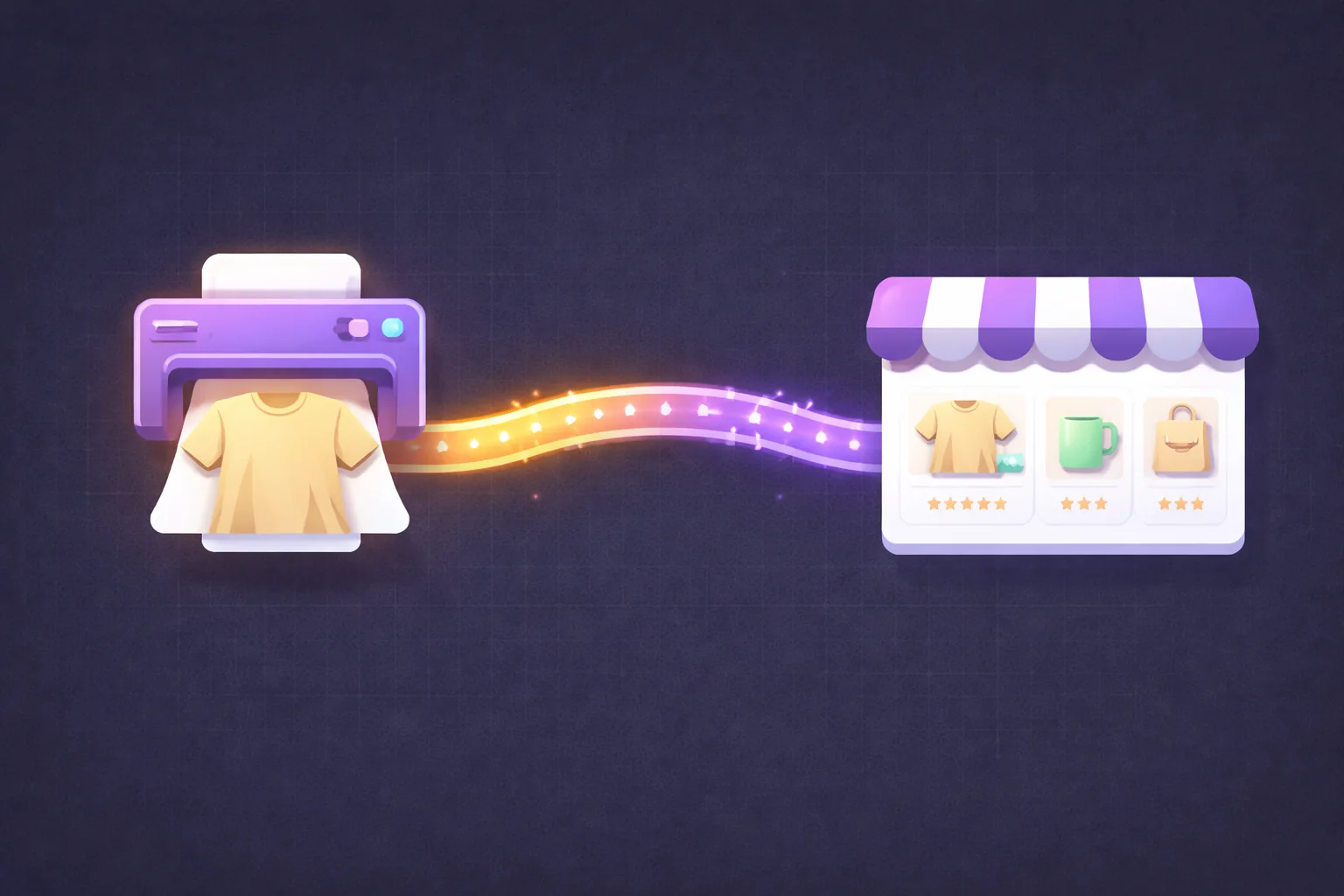
That is the entire connection process. Printify and Etsy are now linked.


Step 3: Create Your First Product in Printify

  1. In Printify, click Create product.
  2. Browse the catalogue and choose a blueprint (e.g. Gildan 5000 T-shirt).
  3. Select a print provider — compare prices, average production times, and shipping costs. For the USA, Printify Express Network providers are usually the fastest.
  4. Upload your design and position it on the print area.
  5. Set retail prices for each variant (size × colour combination).
  6. Click Publish to Etsy.

Printify sends the product to your Etsy shop as a draft listing.


Step 4: Complete the Etsy Listing

This is where most sellers rush — and it shows in their search rankings.

Printify sends over the product title (pulled from your Printify product name), a generic description, and no tags. None of this is Etsy SEO optimised.

Before publishing the listing on Etsy, you need to fix:

Title — Printify's default title is usually something like "Unisex Heavy Cotton Tee". Replace it with a proper Etsy SEO title: 130–140 characters, primary keyword first, comma-separated long-tail phrases.

Tags — Add all 13 tags. These should be 2–3 word phrases covering your niche, product type, and buyer intent. Printify does not add any tags.

Description — Write a proper product description covering: what the product is, sizes/materials, how to order, production and shipping times, care instructions.

Images — Printify provides one or two mockups. For better conversion, add a lifestyle mockup, a size chart, and a detail shot. Etsy recommends at least 5 images.

Section — Assign the listing to the correct shop section for organisation.

Shortcut: PaloTagz can AI-generate the title, tags, and description from your design image in one click, then bulk-apply updates across multiple listings.


Step 5: Set Up Shop Policies

Buyers check your policies before purchasing, especially for custom or POD items. Go to Etsy Shop Manager → Settings → Policies and complete:

  • Returns and exchanges — most POD sellers use a "no returns unless defective" policy since products are made to order.
  • Processing time — add a realistic estimate. Printify's production times vary by provider (typically 2–5 business days).
  • Custom orders — clarify whether you accept them.

Common Mistakes After Connecting Printify to Etsy

1. Publishing with Printify's Default Title

This is the number one SEO mistake. "Graphic Tee | Women's Relaxed Shirt" will rank for almost nothing. Spend 2 minutes writing a proper title, or use AI generation to do it instantly.

2. Skipping All 13 Tags

Etsy gives you 13 tag slots. Every empty one is a missed ranking opportunity. Sellers who use all 13 with targeted phrases outrank those who use 5–7.

3. Only One Mockup Image

Listings with just one image convert significantly worse than listings with 5+. Buyers want to see the product from multiple angles, in use, and with sizing context.

4. Not Setting Shipping Profiles Correctly

If Printify is fulfilling your orders, make sure your Etsy shipping profile matches Printify's actual shipping costs and times. Undercharging for shipping eats into margins; overpromising delivery time leads to bad reviews.

5. Disconnecting and Reconnecting Too Often

Every time you disconnect and reconnect, you may lose the sync status on existing products. Only reconnect if there is an authentication error, and always verify your products are still linked afterwards.


After the Connection: The Setup Most Sellers Ignore

A. Save a Printify Upload Template

If you are uploading more than one product with the same blueprint and print provider, save a template in your upload tool. A template stores:

  • Blueprint selection
  • Print provider
  • Print area position and scale
  • Pricing per variant

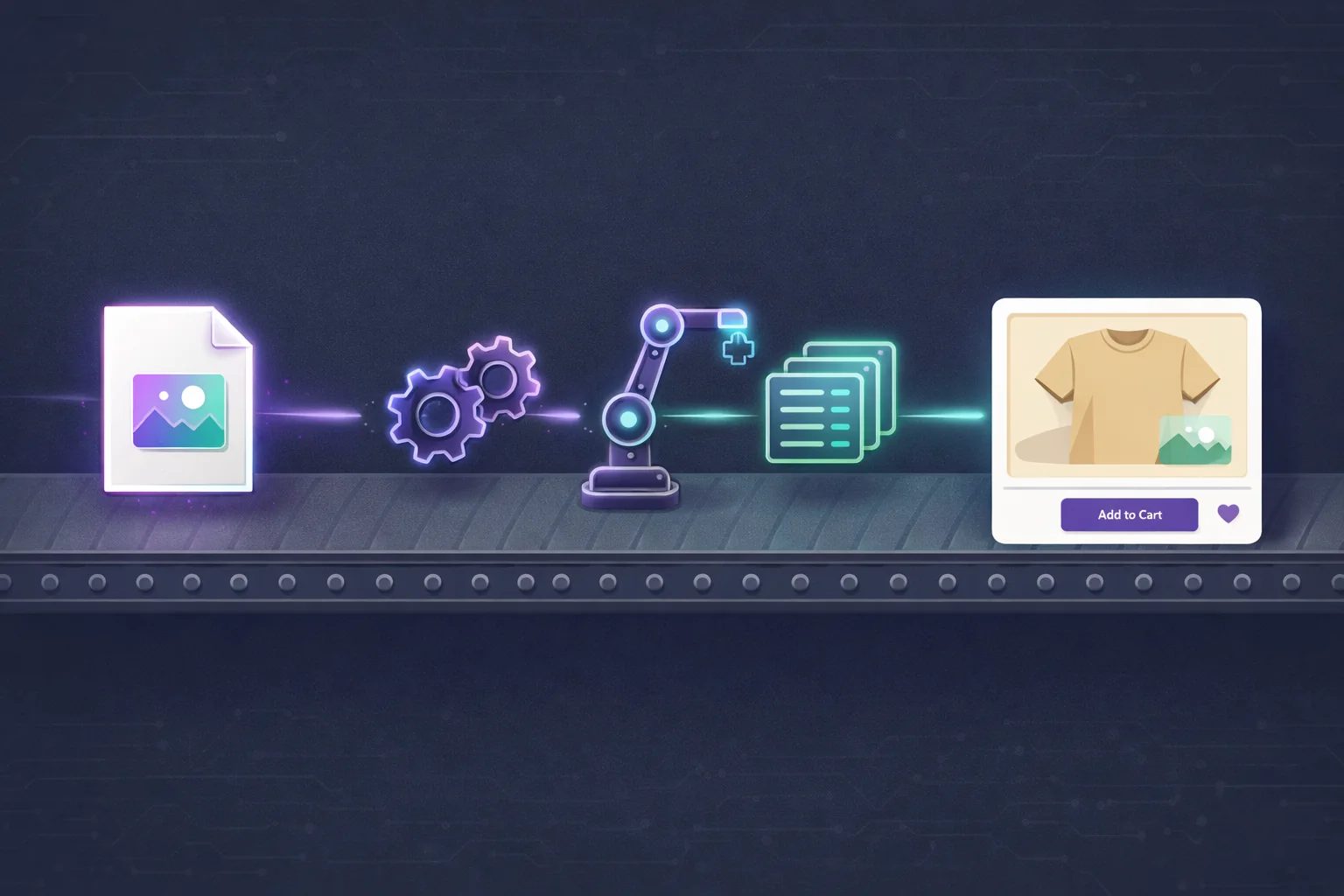
With a saved template in PaloTagz, you can bulk-upload 50 designs to Printify in under 15 minutes — bypassing the manual wizard entirely.

B. Set Up Etsy Star Seller Metrics from Day One

Star Seller status requires:

  • Message reply rate ≥ 95%
  • On-time shipping rate ≥ 95%
  • 4-star or above average review in the past 3 months

Since Printify handles shipping, your on-time rate depends on choosing reliable providers. Check each provider's on-time shipping statistics in the Printify catalogue before picking.

C. Install an SEO Monitoring Tool

After your listings are live, track which ones are getting impressions, favourites, and sales. Etsy's own stats panel shows this. Use it monthly to identify which listings need a title/tag update and which are already climbing.


Checklist: Printify + Etsy Setup

  • [ ] Printify account created
  • [ ] Etsy shop open and bank details set
  • [ ] Printify connected to Etsy via OAuth
  • [ ] First product published with custom SEO title
  • [ ] All 13 tags added
  • [ ] Full description written
  • [ ] 5+ images uploaded
  • [ ] Shipping profile correctly set
  • [ ] Shop policies completed
  • [ ] Upload template saved for future batches

What Comes Next

Once the connection is live and your first listings are published, the next priority is traffic and optimisation. Getting your SEO right from the start means you will accumulate reviews and favourites on the right keywords, compounding your ranking over time.

If you want to move faster, PaloTagz handles the bulk upload, AI SEO copy, and ongoing listing management — so you can spend your time on design and strategy instead of repetitive admin.