How to Bulk Apply a New Design to Live eBay Listings
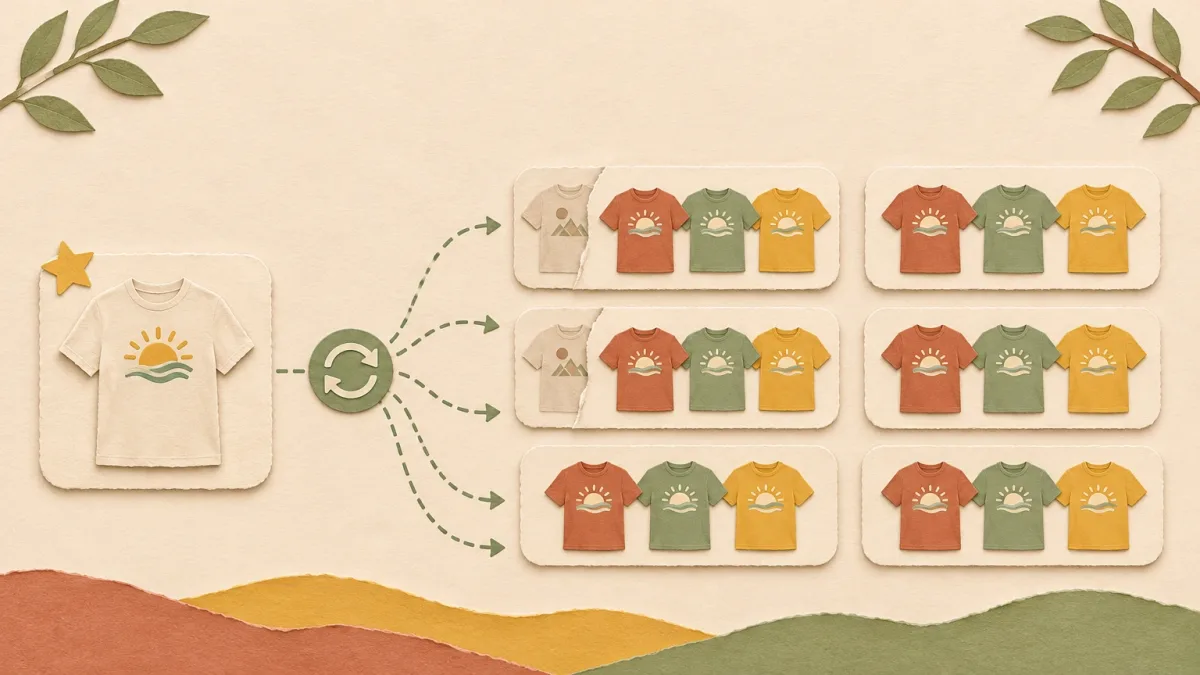
To apply a new design to live eBay listings, revise them instead of relisting. A revision keeps the item number, watchers, and sales history. Update the design at your print provider first, then replace the photos on each listing: by hand in Seller Hub for a few listings, with a CSV upload for hundreds, or with a bulk editor that applies the same mockups to many listings in one go.
I sell print-on-demand on eBay and Etsy and I build PaloTagz, which includes an eBay bulk editor. Here is the order I do it in.
Step 0: Change the print file first
This is the step people skip. The photos on eBay are only pictures. The design that gets printed lives at your print provider.
If you swap the photos on eBay but not the print file in Printify, Printful, or Gelato, the next order prints the old design. The buyer gets something that does not match the listing.
- Upload the new design to the product at your print provider.
- Do not republish it from there if that would create a new eBay listing. Only change the print file.
- Make the new mockups. These become your eBay photos.
Pick the method
| Listings to change | Method | Effort |
|---|---|---|
| 1 to 5 | Seller Hub, one at a time | A few minutes each |
| Hundreds, photos already online | CSV upload with photo URLs | Setup once, then one upload |
| Many POD listings with colors | Bulk editor | One drop per batch of listings |
Method 1: Seller Hub, one listing at a time
- Open Seller Hub → Listings → Active.
- Click Edit on the listing.
- In the photos section, delete the old photos and upload the new ones. Put the strongest mockup first; it is the gallery photo in search.
- For variation listings, check the photo for each color.
- Save the revision.
Fine for a handful. Slow for 50, because every listing is a full edit page.
Method 2: CSV upload with photo URLs
eBay's bulk upload can revise photos when each row includes the item number and the URLs of the new pictures.
- Host the new mockups somewhere with a public link that ends in the image file.
- Download your active listings report in Seller Hub.
- Keep the item number column and the picture URL column. Delete every other column so you do not overwrite anything by accident.
- Paste the new URLs. Several photos per listing are separated in one cell, as shown in eBay's template.
- Upload, then open the upload results. eBay lists every row that failed and why.
Test with five rows first. A wrong URL leaves a listing without photos.
The catch for print-on-demand: variation photos per color are hard to get right in a spreadsheet.
Method 3: A bulk editor
In PaloTagz, the new design goes onto many listings with one drop:
- Make the mockups for the new design. The PaloTagz Mockups tool creates them in bulk from one design file.
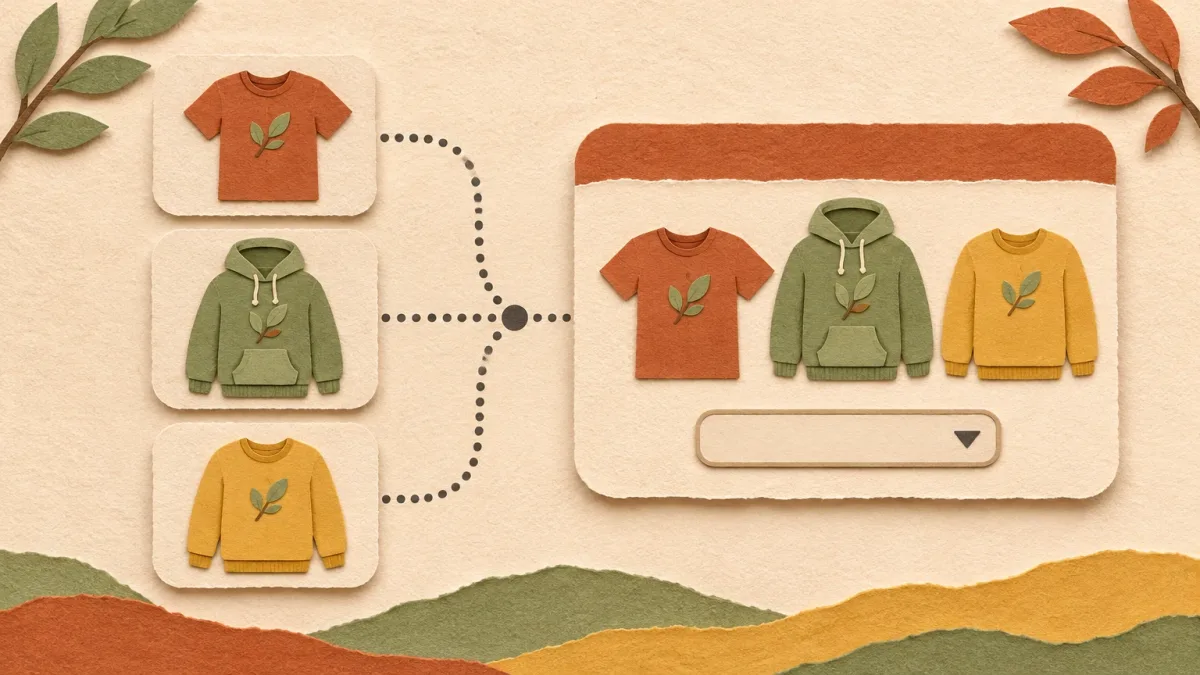
- Open the eBay bulk editor and select the listings that should get the new design. They need the same colors, for example ten shirts that all come in black, white, and navy.
- Drag the mockups onto one of the selected listings.
- Assign each photo to Shared or to a color. Keep Replace existing photos on.
- Save. Every selected listing gets the same photos, each color gets its own.
You can also send mockups straight from the Mockups page to one eBay listing; the photo window opens with them already loaded.
After the swap
- Title and item specifics. If the design changes what the product is, for example a new slogan or a new theme, update the title and the item specifics too. Otherwise buyers search for one thing and see another.
- Check five listings live. Open them on eBay, switch through the colors, and look at the gallery photo in search.
- Keep the old photos. Save the old mockups until the new design sells. If it does worse, you can switch back.
FAQ
Can you bulk apply a new design to live eBay listings? Yes. Change the print file at your provider, then replace the photos on the live listings. Seller Hub works one listing at a time, a CSV upload with picture URLs handles hundreds, and a bulk editor applies one set of mockups to many selected listings at once.
Does changing the photos reset an eBay listing? No. Photo changes are a revision. The listing keeps its item number, watchers, and sales history.
Do I need to relist to change the design? No. Relisting creates a new item number and starts from zero. Revise the existing listing instead.
How many photos can an eBay listing have? Up to 24 photos per listing. For variation listings, give each color its own photos.
PS: Want to swap the design on a batch of POD listings in one go? Try the PaloTagz eBay bulk editor. The free plan includes 10 eBay listing edits.